ASUS uses C-Media's CMI9880 CODEC to output the onboard sound. This CODEC fully support's Intel's new high definition audio, which in turn supports 8-channel sound, with 24-bit precision and 192KHz audio sample rates.
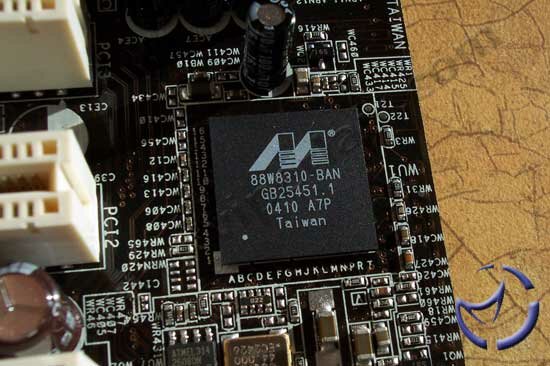
For those looking for flexible networking options, you will not be disappointed with the P5AD2 Premium. The Wireless Edition of the board includes an antenna and supports 54 Mbps IEEE 802.11g (as well as backwards compatibility with 802.11b). You can use this as either a standard wireless connection, or as an access point for multiple wireless PCs. The board also features dual Gigabit LAN controllers which would make this board a good candidate for server purposes out of the box.

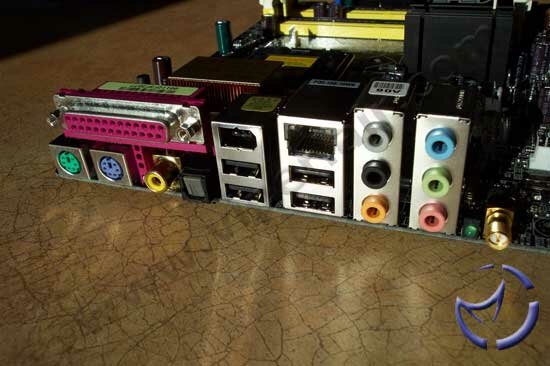
Rounding things out are the integrated rear IO connections. From left to right, we have the PS/2 mouse and keyboard connections, one Parallel port, one Optical and Coaxial S/PDIF Output, one NIC, four USB, one FireWire, the audio, and the WLAN antenna jack (Wireless Edition only). As mentioned earlier, the included PCI brackets will add additional connectivity if used. We have to applaud ASUS for including extras that are actually useful.
The BIOS
The AMI BIOS is where many of the user level tweaks can be done in order to improve performance or stability. Our board uses the 1004 Rev007 version of the BIOS, which is the latest available at the time of writing.
Under Configure System Frequency/Voltage, there are a number of options available. On the AI Overclocking tab, your choices are Manual, Auto, Standard, Overclocking Profile, and AI Non-delay Overclocking System (N.O.S.). While the others are fairly self-explanatory, AI N.O.S. is unique in that depending on your system load, the motherboard will dynamically overclock. During this time, the FSB and voltages will be adjusted automatically.
Setting the AI Overclocking tab to Manual will open up options most enthusiasts are accustomed to. CPU Frequency options range from 100-400MHz in 1MHz increments, which you can manually key in.

For memory, you have the options to run synchronous 400MHz (1:1), or async at 533MHz (4:3), and 600MHz (3:2). You can also adjust your memory timings manually, and as usual, lower numbers will improve performance at the expense of stability. Hyper Path 2 controls the latency timings between the CPU and memory, and enabling it will result in improved system performance.

Along with the ability to adjust the chipset, and PCI-Express levels of performance, when overclocking you'll want to keep some things within spec. An example would be the PCI slots for example, where you can lock it in at 33MHz.
For your voltage options, you have the default 1.525v for the CPU, and it can scale as high as 1.7v in 0.0125v increments. For the memory, it starts at 1.8v and tops off at 2.1v. The chipset's options are 1.5v and 1.6v.
There are dozens of more BIOS options that we won't get into here, but rest assured that if you don't need a RAID controller, you can disable it. If you want to disable the onboard sound, and use a PCI card, you can. ASUS allows quite a bit of leeway in what the user can enable and disable with the P5AD2 Premium.
Subsystem Testing - Audio
For our UT2003 audio/framerate tests, we ran dm-Antalus benchmarks at 640x480, minimum detail with sound on and off. This was repeated at 1024x768, but with maximum detail. The reasoning is at low detail and resolution, the work will fall on the CPU and motherboard subsystem. Higher resolution is more representative of actual gameplay for most users
Unreal Tournament 2003: Antalus, Min Detail @ 640
| |
Frames per Second
|
| Sound Off |
359.72
|
| Sound On |
343.88
|
With sound enabled, the ASUS P5AD2 takes a 15.84 frames per second hit at 640x480.
Unreal Tournament 2003: Antalus, Max Detail @ 1024
| |
Frames per Second
|
| Sound Off |
117.322
|
| Sound On |
117.313
|
At a higher resolution and detail levels, the onboard sound's CPU utilization will not be a factor at all. There is less than a half frame per second loss in speed when using the onboard sound at this resolution, therefore, I wouldn't hesitate in using the onboard sound for general use and gaming.
In terms of sound quality, I found gaming to be very acceptable, as was the case with movie and MP3 playback. Even when doing some disk intensive tasks, MP3 playback was not affected. The Mic-In tests went well, as recorded voice recordings played back at the proper pitch, though I found the volume to be a bit low.
Hard Drive Performance
We used HD Tach to gauge read and write performance with our Seagate 120GB SATA drive. As usual, the disk was freshly imaged, and configured with only one partition.

|
|
|
Intel ICH6R
|
SI 3114R
|
The Intel D925X and ICH6R support Native Command Queuing (NCQ). This a feature allows ATA drives to accept more than one command at a time. The hard drive used does not support this feature, but we hope to attain a drive that will shortly.
The ICH6R and Silicon Image 3114R controllers both use about 1% CPU. The ICH6R is slightly quicker than the PCI bus bound 3114R, transferring 69.2MB/sec as opposed to the 3114R's 69MB/sec. The ICH6R's average reads are also slightly higher by 0.4MB/sec.
Network Performance
We used to test the networking speed, and Windows Task Manager for CPU usage. We copied a variety of install files, totaling 758 MB, varying in sizes of 300kb to as much as 60MB per file to and from the ASUS P5AD2 Premium machine, to our MSI K8N Neo Platinum box, using the Marvell onboard Gigabit controller. We also performed the same test with an ISO image, totaling 761MB.
It's been reported in other reviews, but we had problems with the second Marvell NIC (attached via the PCI bracket) where it would not initialize at 1000MB. We're hoping a new driver or firmware update will correct this.
Both systems were connected via a CAT-5E crossover cable, which should prevent any bottlenecks that would arise with our standard 10/100 router.
Small Files Test - 758MB Total
|
Time to Copy
|
Ave Transfer mB/sec
|
CPU %
|
| Upload |
0:22.2
|
35.17
|
9
|
| Download |
0:27.3
|
27.92
|
13
|
Large File Test - 761MB Total
|
Time to Copy
|
Ave Transfer mB/sec
|
CPU %
|
| Upload |
0:21.4
|
37.87
|
8
|
| Download |
0:24.6
|
32.58
|
11
|
With the large file, our results were similar to the small files, but slightly improved. CPU usage was very low, and all tests took under half a minute for the transfers. The WiFi connection did not fare as well, taking over six minutes for uploads and downloads, but performed within its specifications. If you have a wireless setup, you should be satisfied with the performance, but if performance is important to you (notably the online gamers), I'd stick with old fashioned hard lines.
NEXT