Introduction
So how many of you out there have had the pleasure of data loss? I know I have, and it really is crappy to say the least. Losing a Hard drive, or maybe snapping/scratching a CD, all of this can make getting at your data pretty difficult if not impossible. That's where regular backups can save a lot of aggravation and grief. But let's face it, it's a boring job and whilst the backing up of data is usually a simple enough affair, restoring it again can be a pain. And that's only if your bother to backup in the first place! Liutilities are hoping to take away the pain and aggravation data loss can cause (as well as making backups/restoration a simple and quick affair) with a program that everyone can easily use with the minimum of fuss. Today we are looking at the software. Thanks go to for supplying the review sample.
Minimum requirements
400 MHz Intel or AMD compatible processor
32mb RAM
2x CD-Rom drive
2 MB Free disk space
Windows 98/ME/NT/2000/XP
Features
Easy to Use
WinBackup is based on our new user interface design with built-in documentation that virtually eliminates the need to read the manual. Whether you are new to computers or a professional you will find this program incredibly easy to use.
128 or 256-bit encryption
WinBackup uses one of the most secure encryption algorithms available (256bit AES) to secure your data, making it virtually impossible for anyone to access your files without your permission.
Built-in CD and DVD writing
WinBackup supports a large variety of backup medias including Hard drives, Removable disks, USB drives, CDR, CDRW, DVD-R, DVD-RW and more. It also allows you to create completely customized backups with selectable security levels, compression, extension filters and more.
Ease to Schedule Automatic Backups
WinBackup comes with a built-in scheduler that works on any operating system. Scheduling automatic backups is very easy and can be saved to any media including CDRWs or DVD-RWs. You can even schedule network backups to a shared DVD writer and update a DVD-RW automatically on a daily basis.
Fast Backup Engine with on-the-fly Compression and Encryption
WinBackup is based on our new multi-threaded file processing engine for maximum performance. WinBackup also utilizes the latest compression techniques to reduce the size of you backups to a minimum. On-the-fly Compression makes it possible to backup more data to any media, and ensures efficient media usage and low media costs.
A Closer Look
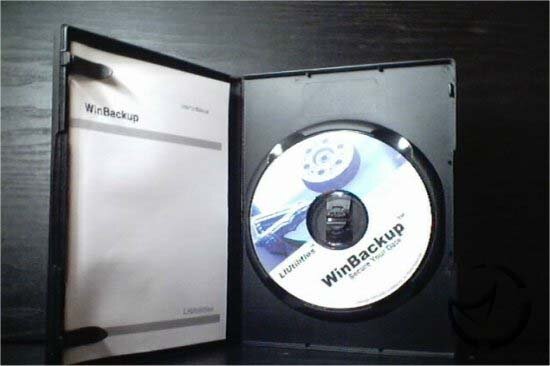
The Box is the same kind of box you would find storing a DVD, and inside you will find the Winbackup Disk as well as the (there's also a .pdf manual included on the disk). The manual isn't anything special but the simplicity of the program, as you will see, really means that the manual is reduced to more of a visual aid than an actual guide. The pictures are in colour however, so there is that at least.


Click To Enlarge
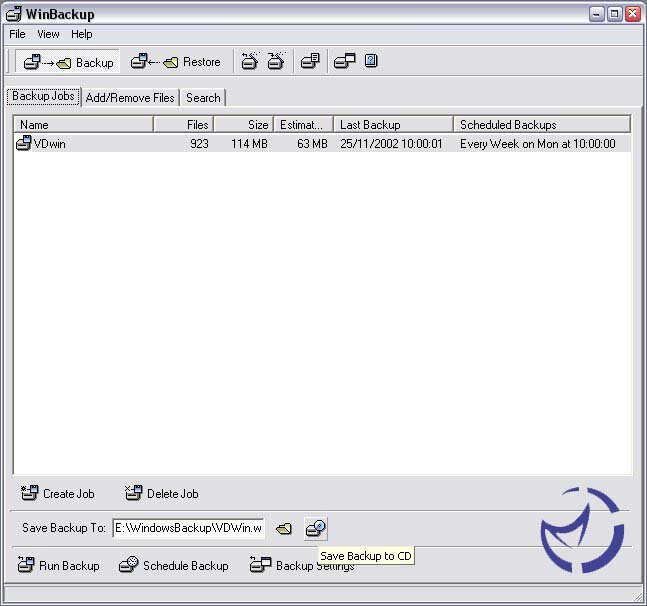
Installation is a breeze, with the program installing in seconds with a full installation (including the help files in pdf format) taking up less then 3MB of disk space. When you run the program for the first time, you realise that simplicity is a theme throughout. The screen itself is actually a bit bare but once you get to use the program you realise it doesn't matter, everything you NEED is there, and nothing that you don't (like fancy graphs and useless functions).

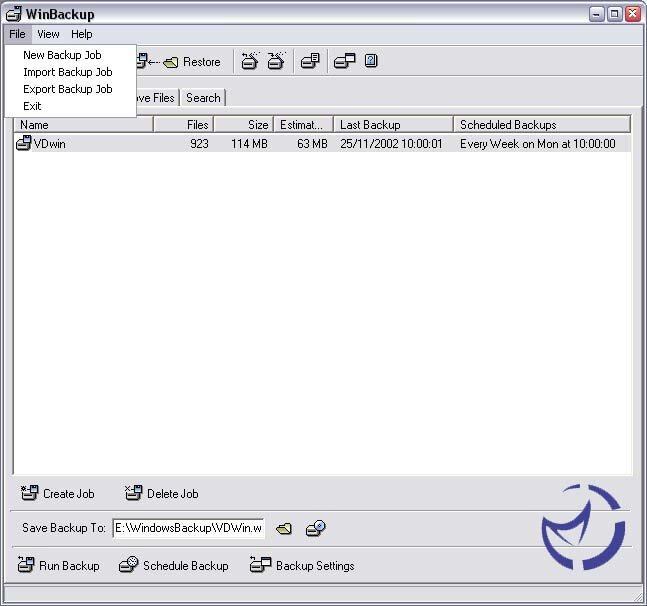
Upon first run a simple popup wizard guides you through setting up a backup 'Job' for the first time. In Winbackup a 'Job' is a template that outlines to the program what exactly the program should backup and how. The wizard will ask you to click on "Create Backup job", where a new job will be added to the list.

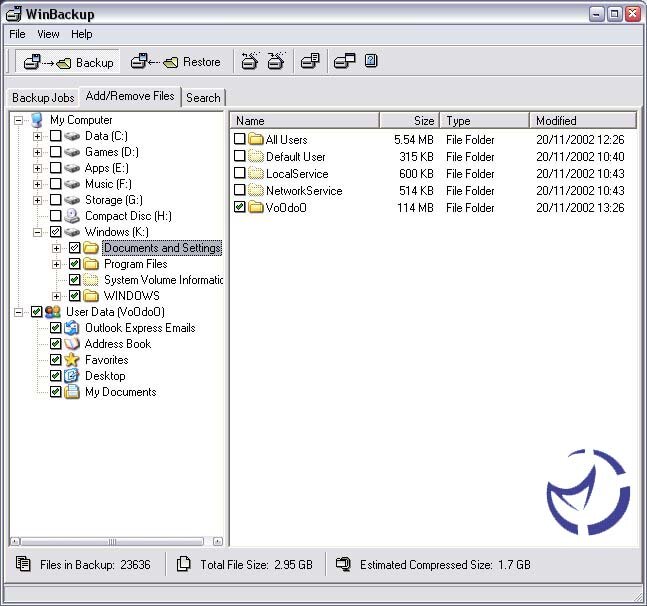
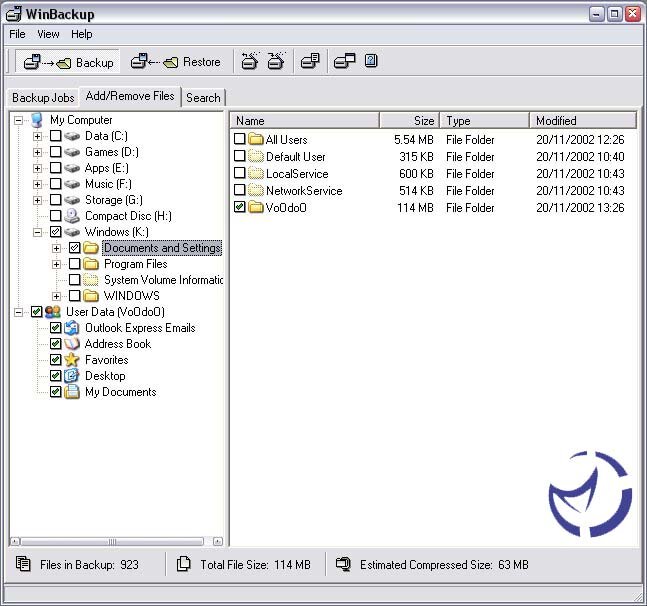
Then the wizard will ask you to move to the next tab, the Add/Remove Files window. You select the files you wish to backup using the very easy to navigate directory list or 'tree' and simply tick the files you wish to save. Windows data, such as E-Mails or the address book can be saved too.


Click To Enlarge
Once this is done, the wizard will take you back to the Job list and get you to input the settings you want, e.g. a total backup of the selected files, the location for the saved files, etc.

Then you're prompted to click the "run backup" button and the program will do its thing. Simple eh? The job you have created will remain in the list, and can be edited with a simple right click. So why edit a job that has already been done? Well, you can also schedule regular backups and in the backup settings window, choose to backup only those files that have changed.

Compression (which is calculated on the fly) is also available to help reduce the filespace needed and up to 256bit encryption for those of you with a need to secure there data. Scheduling the backups makes the program a set and forget affair, and there's nothing to stop you running multiple schedules for multiple jobs. Obviously the best option would be to backup to some form of removable media such as a CDRW or DVD-RW and Winbackup accommodates here too with an integrated CD authoring option. If this isn't an option, you could even backup to a network folder, basically anywhere you could possibly save files, Winbackup can be scheduled to save to. Winbackup produces detailed logs, so you can easily see what is actually in the current backup via the log file.


Click To Enlarge
Restoring files is just as easy, with a wizard to help guide you through the steps. You can choose to restore the files to there original location or somewhere of your choice which can be handy if you wish to restore files to a different location/drive than where they originally came from. You can also choose to restore only selected files rather than the entire backup which makes the program very versatile. Both restoration and backups take no time at all, even with encryption and compression. I have Winbackup set to backup about 60mb of files in one job and the backup for this runs every day. It took 46secs upon first run (total backup) with an avg of 2-5 secs for the additions and/or changes it makes once a day. Very fast and doesn't interrupt what your doing in any significant way.
Final Words
Winbackup is simplicity itself, with a very intuitive and uncomplicated user interface. The directory tree and tick boxes make setting up a backup job up very quick, and with the scheduling handling your backups in the background (even when the program isn't running), this is very much a 'set and forget' program.
Restoration is just as easy, and being able to restore individual files from a backup makes it very versatile in its use. Up to 256bit Encryption is supported, so you can hide all your pr0n & er & important files from the sig other safe in the knowledge that they wont be able to get at those files (unless your one of these people who insist on having ONE password for EVERYTHING and EVERYONE knows what it is).
Both Corporate and Home User's will like the ability to be able to backup to pretty much any device that can store files, and there is even an integrated CD/DVD burning, as well as the possibility to backup to a network drive. The program is tiny, taking up less than 3meg with help files included and is fast, both in user to program as well as the program functions themselves.
Basically, it does exactly what it says on the tin with the minimum of fuss and hassle. I couldn't find any thing to moan about at all, it plain and simple works. Big thanks to for supplying the review sample.
Pros
Ease of use
Wizards to guide you through everything
Small program size
Scheduling for set and forget
Encryption and Compression supported
CD/DVD burning supported
Can restore individual files from a backup.
Cons
None : )
Bottom Line
If you're looking for a Backup program for Windows that's both simple and robust, then Winbackup is your program. Does exactly what it says on the tin.